
Tinkercad and 3D printing: how to design a part that prints well
From measurements to joints, up to the preview in the slicer: a practical method to transform a Tinkercad project into a producible 3D piece.
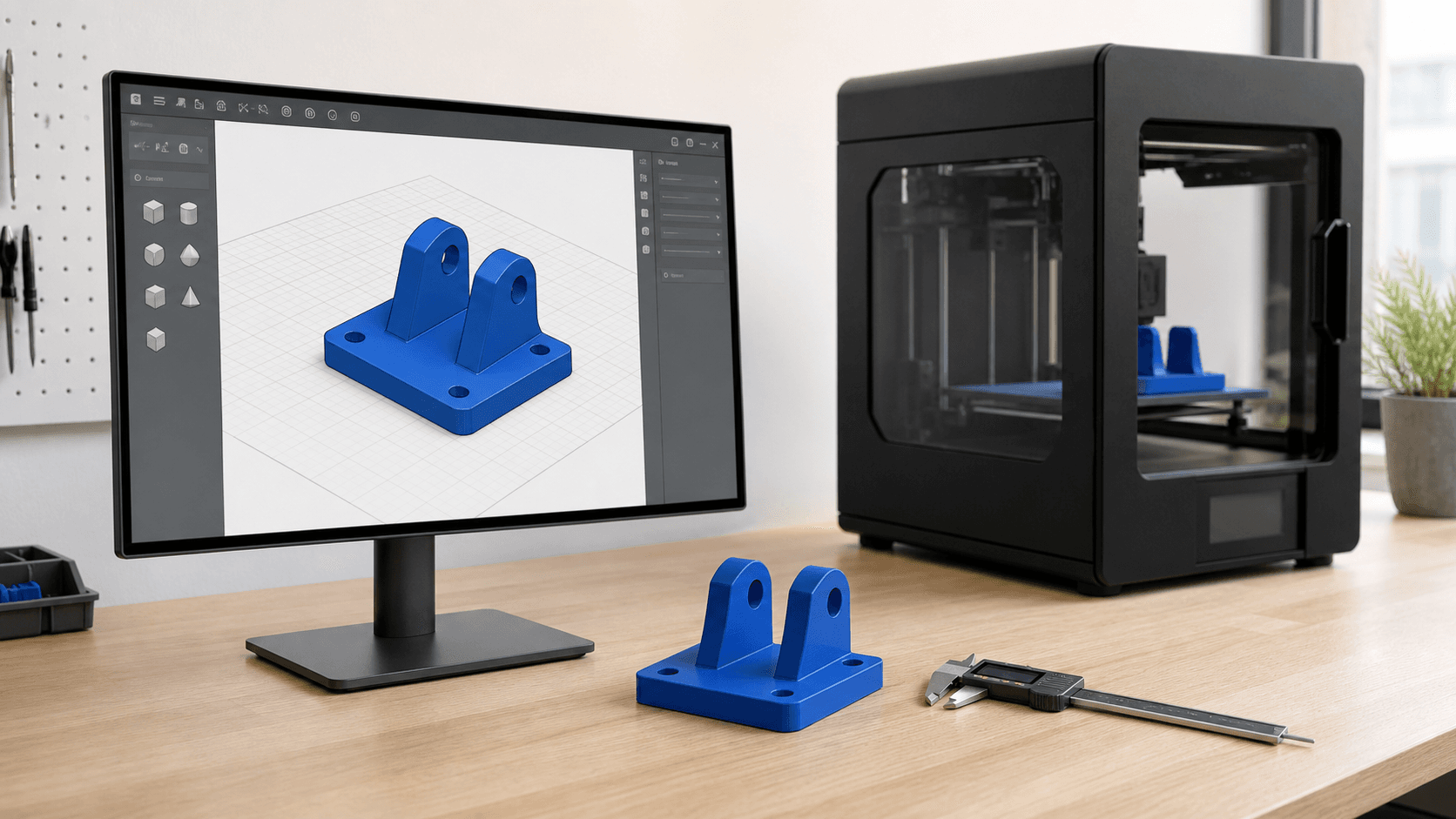
Tinkercad is simple, production still requires method
Tinkercad is a free web application designed to get you started with 3D design. Its method based on simple shapes, alignments, groupings and subtractions allows you to quickly build spacers, supports, containers, tags and small adapters. Autodesk presents it as an accessible tool for 3D design and printing, especially suitable for beginners. This ease, however, does not automatically make every model producible. An object may look fine on the screen and have walls that are too thin, overlapping bodies, insufficient clearance, or details that the slicer can't turn into useful paths. The difference between a digital form and a reliable piece lies in the requirements, dimensions and final verification. The following method helps you use Tinkercad with a concrete goal, without attributing machine, material and application-dependent decisions to the software.
Start from the use of the piece, not from the available shapes
Before dragging a cube onto the work plane, define what the component should do. Does it just need to show an idea, fit into an assembly, support a light load, or protect an element? Note maximum dimensions, contact surfaces, holes, direction of stress and environment of use. For a support near a heat source, for example, the choice of material matters as much as the geometry. Then identify the truly critical dimensions. A decorative box tolerates variations that an adapter, bushing or snap-on lid cannot. Use the ruler and numerical values to size important elements; relying only on dragging with the mouse makes it difficult to repeat a change. Also keep an initial version of the project, so you can go back if a grouping eliminates useful references.
Construct a clean solid with controlled alignments and subtractions
Typical Tinkercad flow combines solid primitives and shapes set as holes. It is effective, but requires order. Align the elements with respect to a defined face or center, check their elevation on the plane and verify that a subtraction actually passes through the expected volume. A hole just tangential to a wall can leave an unwanted thin wall; two bodies that merely touch can instead appear to be united while creating a fragile or ambiguous area. After each major group, rotate the view and look at the model from below and in section whenever possible. Look for closed cavities, unintended steps, and interior details that don't add function. The file intended for printing must represent a coherent volume. The slicer can repair some mesh problems, but an automatic fix does not guarantee that the result matches the original design.
Size walls and details relative to the real process
There is no universal minimum thickness. Nozzle diameter, extrusion width, layer height, material and orientation change what is reproducible. A wall visible in CAD may be thinner than an extrusion path and disappear in slicing. For this reason, dimensions should not be chosen just because they appear proportionate on the monitor. Define the printing technology first and compare the thin parts with the real setup. Make joints strong with radii, chamfers or ribs where needed, rather than indiscriminately increasing infill. Cylinders also deserve attention: too low a geometric resolution can turn a hole or pin into a polygonal shape. Prusa's technical guide on print modeling recommends checking walls, details, cylinders and geometry solidity in relation to the process.
Predict the play in the joints and test the critical zone
Two elements modeled with the same nominal dimension do not automatically form a functioning joint. Printing introduces variations related to machine, material, orientation and first layer. A 10 mm pin and a 10 mm hole may therefore not mate. The necessary clearance depends on the type of connection: sliding, press-fit, removable or permanent. Avoid a universal dimension copied from the internet. Instead, create a small sample with multiple hole and pin combinations, printed with the expected material, orientation, and profile. Measure the result and apply the verified value to the project. If the part fits with an existing component, check multiple points of the real object: wear, ovality and tolerances of the original component may be greater than those of the print.
Design with orientation and supports in mind
FDM manufacturing adds material layer by layer. Hanging surfaces, steep overhangs and horizontal holes may require supports or lose quality. Before exporting, imagine the piece on the print bed: which side should be more regular? Where do the loads pass? Which areas may show support marks? Often a simple modification reduces the problem: a chamfer instead of a downward-facing fillet, a hole with an adapted shape, a more stable base or dividing the model into two parts. Splitting is also useful when it allows you to orient different functional surfaces separately. However, provide assembly references, access to tools and space for adhesive or fixings; cutting the model without planning the rejoining only moves the defect.
Export, open in slicer and check the layers
Autodesk indicates that Tinkercad can export designs intended for 3D printing. However, export is not the final check. Open the file in the slicer configured for the real machine, check units and dimensions, then generate the preview. Scroll through the layers and look at the first layer, walls, small details, bridges, supports and estimated times. If a wall disappears, a hole is closed, or a part starts in mid-air, return to the project. Don't always correct the symptom by increasing supports or scale: identify the responsible geometry. Save both the editable project and the exported file and give clear version names. For a small series, also keep the print profile and approved sample.
When Tinkercad is enough and when it is better to switch to parametric CAD
Tinkercad is suitable for simple parts, learning activities, quick adapters, and first iterations. As relationships between dimensions, instances, assemblies, complex surfaces, or frequent revisions increase, parametric CAD can make the design more controllable. The step does not devalue the initial model: it simply clarifies that the tool must follow the complexity of the requirement. Before producing a functional component, validate at least the most critical area. ADIVO can verify the file, evaluate material and orientation, prepare for FDM or DLP printing and make a sample. Send Tinkercad design or exported file, final measurements, quantities and conditions of use: a short technical review can avoid many reprints and turn a simple idea into a repeatable piece.