
Bambu Studio: 8 checks before starting a 3D print
Machine profile, filament, orientation, supports and preview: eight practical checks in Bambu Studio to reduce errors and reprints.
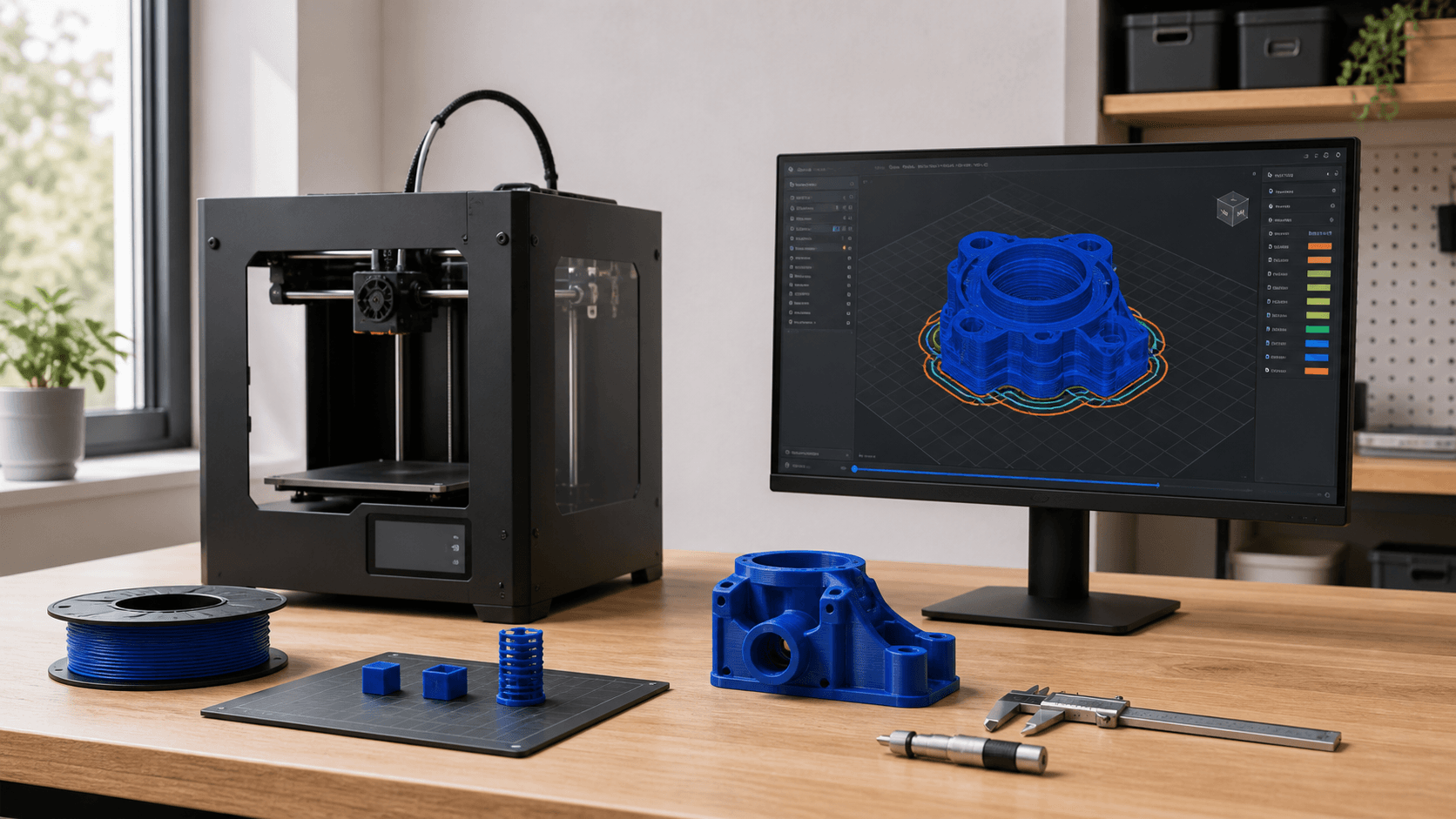
Bambu Studio prepares the print, but does not decide for you
Bambu Studio turns a 3D model into instructions that the printer can execute. Import files, organize one or more plates, apply profiles, generate supports and allow you to observe the tool path before sending the work. The software includes advanced functions, but a slicing button does not automatically make the project correct. If the machine, nozzle, build plate or filament does not correspond to the real configuration, even a well-built model can produce an unexpected result. Before a long print it is therefore advisable to stop for a short and orderly check. Eight checks take just minutes and help reduce errors in scale, adhesion, support, time and material consumption. They are not a universal recipe: each filament and each application requires manufacturer indications and, when the piece is functional, a test consistent with use.
1. Check printer, nozzle diameter and selected build plate
The first check is the easiest to skip. Bambu Studio can manage different configurations and store multiple profiles; the open project could therefore refer to another machine, to a nozzle of different diameter or to an build plate that is not installed. These choices influence useful volume, extrusion width, temperatures and first layer strategy. Compare what appears in the software with the printer in front of you. If you replaced the nozzle, don't just remember it in your head - select the correct profile. Also check type of plate and surface. An adequate profile reduces the risk of using temperatures or adhesion procedures incompatible with the actual build plate.
2. Match digital profile and physical spool
The filament entry in the slicer must match the loaded material. PLA, PETG, TPU and engineering materials require different temperature ranges, cooling and speeds. Even two filaments from the same family can behave differently in terms of formulation, color, additives and storage conditions. Check material, manufacturer when available, color and spool position. In multi-material systems it verifies that the assignment on the plate and the physical arrangement coincide. If the filament is generic or new, start from the manufacturer's data sheet and a sample; avoiding random adjustments on many variables together makes it easier to understand what improved or worsened the result.
3. Check scale, units and final dimensions
A file can be geometrically valid but have the wrong size. STL does not carry with it a mandatory unit of measurement, while other formats can store more design information. After importing, read the dimensions along the three axes and compare them to at least one known dimension. This step is decisive for spare parts, seats, miniatures and assembled components. Resizing a model changes not only the size, but also thicknesses, gaps and details. A hole designed for a screw does not automatically remain functional after uniform scaling. If precise dimensions are needed, correct the CAD or test with a targeted sample instead of relying on percentage of scale alone.
4. Choose orientation based on function
Orientation affects supports, finishing, resistance along layers and machine time. The automatic function can offer a good basis, but does not always know the priority aesthetic surface or the actual load direction. Notice which faces touch the build plate, where the seam lines will end, and how the piece will work after assembly. For a bracket, the orientation should take into account the forces that tend to separate the layers. For an aesthetic shell, it may be more important to protect the visible face from support marks. If no location meets all your requirements, consider splitting the model and adding assembly references.
5. Use supports and brims only where they solve a problem
Bambu Studio offers regular, tree, hybrid and custom supports. Generating them anywhere may seem prudent, but it increases material, time, and surfaces to finish. Before accepting the automatic result, identify bridges, overhangs, and islands that start in the void. Then check accessibility and distance of the support from the part. The brim increases contact surface area and can help narrow, tall or lift-sensitive geometries. However, it does not compensate for a dirty surface, an incorrect temperature or a poorly adjusted first layer. Supports and brim must respond to an observable cause, not become permanent settings applied to each file.
6. Set up walls, layers and infill from the requirement
Layer height, number of walls, and infill are not three project-independent sliders. A lower height can improve vertical detail and sloped surfaces, but increases the number of layers. For many functional components, adding walls in the right area can be more beneficial than raising the infill a lot. Ask yourself what characteristic needs to be protected: appearance, mass, stiffness, tightness, local resistance or speed. Use per-object or per-part parameters when an area requires different treatment. Avoid interpreting the percentage of infill as a direct measure of final strength: geometry, material, orientation and adhesion between layers remain crucial.
7. Read the preview after slicing
Preview is the most important check before sending. Don't just look at the colored model: scroll through the layers and observe the first layer, walls, bridges, supports, seams, material changes and movements. Views by line type, speed or flow can highlight sudden accelerations, small islands and areas starting without sufficient base. Also check for any unexpected gaps. A wall that is too thin could disappear; a small detail could be simplified; overlapping bodies could generate different paths than expected. If the preview doesn't match what you imagine, don't start printing - go back to the model or settings and identify the cause.
8. Save project and note what makes the result repeatable
A 3MF project file can preserve plates, layout, profiles and many settings used in slicing. Saving it with a clear name helps reconstruct the work and distinguish a proof from an approved version. For a small series, at least record the date, machine, nozzle, filament, orientation and check performed. The slicer's time and material estimate is useful for planning, but it remains a forecast. Compare it with real results and update the process when significant differences emerge. Minimum traceability and approved sample avoid starting from scratch at the next reprint.
First print: look at the first layer and validate the piece
After the eight checks, the first printing phase still deserves attention. Check that lines of the first layer adhere uniformly and that no dragging, accumulations or detached areas appear. If the project is new, don't let a good start replace the final check. Measure critical dimensions, test assembly and evaluate surfaces with respect to the objective. For components subjected to load, temperature or cycles, define a test proportionate to the use. ADIVO can support file preparation, material selection, FDM printing and prototype validation. Send model, dimensions and conditions of use: starting from a technical check in the slicer is the fastest way to transform a digital prediction into a reliable piece.